Disclosure: ClearPick Digest is supported by its readers. If you buy through links on this page, we may earn a commission at no extra cost to you. Read our affiliate disclosure.
Executive Summary
- Mobility vs. Permanence: Laptop stands offer immediate plug-and-play mobility for hybrid workers, while monitor arms provide unmatched structural flexibility for static multi-display workstations.
- Ergonomic Clearance: A monitor arm frees up usable desktop surface area and allows precise depth and height micro-adjustments, whereas a stand occupies desktop space directly beneath your screen.
- Setup Requirements: Both solutions demand external peripherals (mouse and keyboard) to prevent wrist pronation and shoulder strain, making an ergonomic input setup non-negotiable.
Ergonomic Alignment: Managing Eye Line and Focal Distance
The core goal of any display mount is elevating the top third of your screen to eye level while maintaining a neutral cervical spine. When comparing a laptop stand vs monitor arm, the primary mechanical difference lies in focal depth and adjustability ranges.
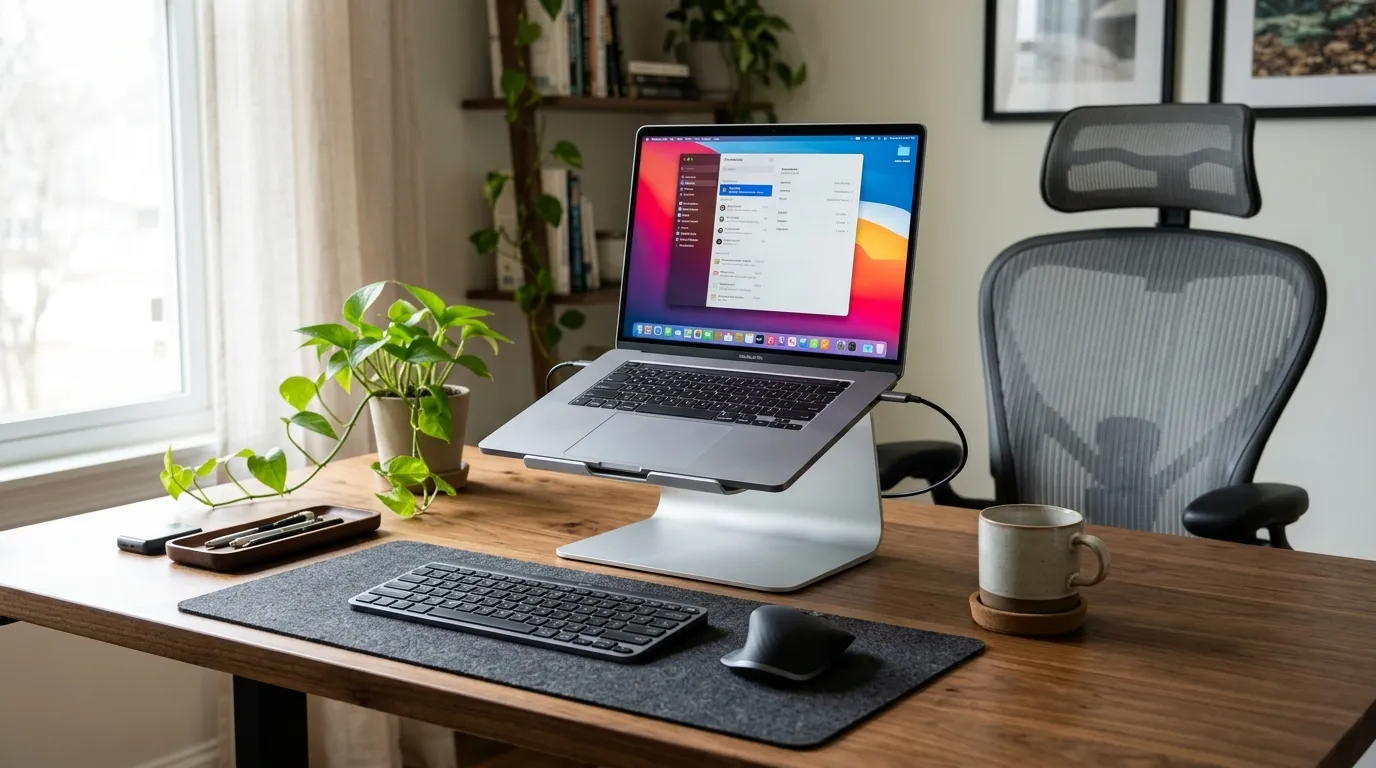
A standard laptop riser lifts your integrated display, angling it upward. While this prevents “tech neck” caused by downward gaze, it creates two distinct ergonomic limitations:
- Fixed Focal Depth: A laptop stand must rest close enough on your desk to prevent visual strain on smaller displays (typically 13 to 16 inches), which limits how far back you can push your keyboard.
- Keyboard Inaccessibility: Elevating a laptop angles the built-in keyboard upward at an awkward slope. Typing directly on an elevated laptop bends the wrists backward (wrist extension), compressing the carpal tunnel. You must pair a riser with a separate keyboard and mouse.
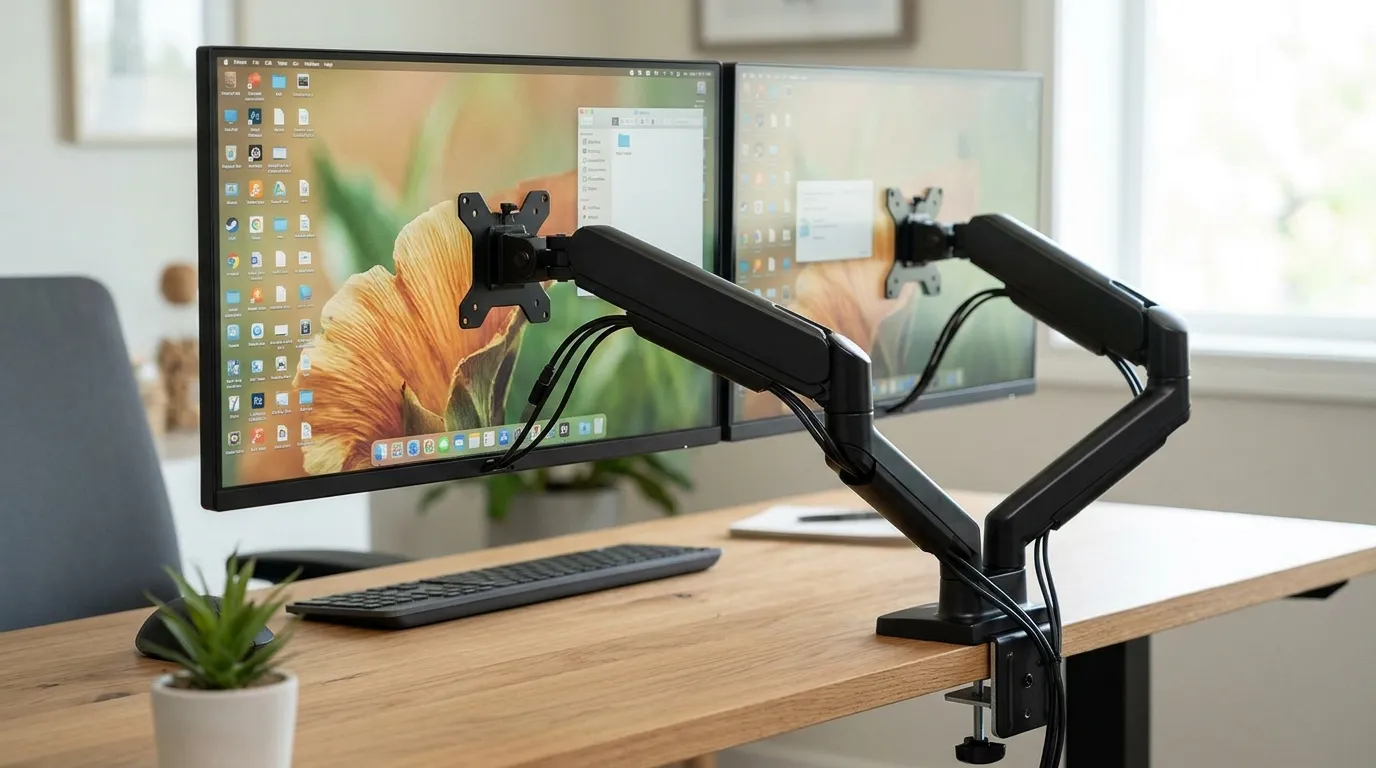
A monitor arm, by contrast, relies on a gas-spring or mechanical counterbalance system clamped to the desk edge. This allows you to pull the screen closer for detailed spreadsheet work, push it back during video calls, or adjust vertical height independently of desk depth. For dedicated displays measuring 24 to 34 inches, an articulated arm delivers millimetric control over tilt, swivel, and focal distance that desktop risers cannot replicate.
Desk Footprint and Structural Stability: Clamps vs. Bases
Desktop real estate often dictates the winner in the laptop stand vs monitor arm debate.
Surface Area Reclamation
A conventional laptop stand features a metal or wood base plate that occupies between 60 and 90 square inches of your desk surface. While some cantilevered stands allow you to stash a keyboard underneath when not in use, the footprint remains dedicated to the riser.
A monitor arm clamps to the rear edge of your desktop via a C-clamp or grommet mount. By lifting the weight off the primary workspace, you reclaim the area directly beneath the monitor for notebooks, audio interfaces, or desktop charging docks.
Desktop Construction and Weight Limits
Monitor arms exert concentrated mechanical torque on a tiny surface area of your desk. Before purchasing an arm, check your desktop construction:
- Solid Wood or High-Density MDF: Handles heavy single or dual-arm clamps without issue.
- Hollow-Core or Paper-Honeycomb Desks: Risk structural crushing under the clamp pressure. If using a lightweight honeycomb desk, use reinforcing steel spreader plates or stick with a weighted laptop stand.
Laptop stands distribute weight across a wide base, making them completely safe for fragile glass tops, thin laminate surfaces, and compact writing desks.
Portability vs. Multi-Display Flexibility
Your daily routine—specifically how often your computer leaves your desk—heavily influences which mounting solution performs best.
The Hybrid Worker’s Case for the Stand
If you work in a corporate office two days a week and from home the rest, friction matters. A folding aluminum laptop stand requires zero tools, fits into a backpack sleeve, and allows you to dock and undock your laptop in seconds. There are no VESA brackets to align or mechanical tension knobs to balance.
The Power User’s Case for the Arm
For setups running a high-resolution primary display alongside an open laptop screen, a dual-arm system offers superior synergy. Using an arm equipped with a VESA laptop tray, you can mount your portable machine right next to your primary panel at identical eye heights. Integrated cable routing channels conceal display cables and power delivery lines down through the arm column, eliminating visual clutter entirely.
| Feature | Desktop Laptop Stand | Articulated Monitor Arm |
|---|---|---|
| Installation Complexity | None (instant placement) | Moderate (clamp and VESA mounting) |
| Desk Surface Saved | Low (occupies desk space) | High (floats above desk) |
| Portability | High (collapsible options) | Fixed installation |
| Desk Material Sensitivity | Safe for all materials | Requires solid desk surface |
| Cable Management | Visible/external | Integrated routing channels |
The Verdict: Which System Fits Your Workspace?
Choose a laptop stand if you:
- Rely solely on your laptop display and frequently move between rooms or co-working spaces.
- Work on a delicate glass desk, hollow-core tabletop, or rental furniture that cannot accept edge clamps.
- Want an affordable, zero-tool ergonomic fix to lift your webcam to eye level for video calls.
Choose a monitor arm if you:
- Use a standalone monitor (24 inches or larger) as your primary visual workspace.
- Need to reclaim valuable desk space for physical documents, writing, or external hardware.
- Want complete freedom over tilt, rotation (portrait vs. landscape), and focal distance.
For many professionals, the optimal answer is a hybrid: a heavy-duty arm holding an ultrawide monitor, paired with a compact, low-profile laptop riser to keep communications channels visible at side glance.
Frequently Asked Questions
Can you mount a laptop directly to a monitor arm?
Yes. You can attach an aftermarket VESA-compatible laptop tray to any standard 75x75mm or 100x100mm monitor arm. The tray cradles your laptop with adjustable side grips, allowing you to float your laptop alongside an external screen with full articulation.
Do I need a separate keyboard and mouse if I use a laptop stand?
Yes. Placing a laptop on a stand raises the integrated keyboard to chest height. Typing directly on an elevated keyboard forces extreme wrist extension and elevates your shoulders, causing strain. Always pair an elevated laptop with an external keyboard and mouse placed flat on your desk.
Can a monitor arm damage a standing desk?
A monitor arm will not damage a motor-driven standing desk as long as the total payload (arm plus displays) stays within the desk’s rated lift capacity. However, ensure that desk cables have sufficient slack to extend fully when the desk moves from sitting to standing height without pulling on the arm mount. Check your desk frame specifications for load ratings before mounting heavy ultrawide displays.