Disclosure: ClearPick Digest is supported by its readers. If you buy through links on this page, we may earn a commission at no extra cost to you. Read our affiliate disclosure.
Executive Summary
- Optimize Surface Depth: Shallow desks (20–24 inches deep) require monitor arms and compact keyboards to maintain the recommended arm’s-length viewing distance.
- Prioritize Adaptable Seating: Choose task chairs with flip-up armrests or smaller five-star wheelbases to tuck completely under the desk when not in use.
- Clear Under-Desk Knee Clearance: Avoid storage units under the desk to maintain unrestricted leg movement, optimal hip angles, and proper footrest placement.
Creating an ergonomic desk setup in a small space often feels like a series of compromises. Traditional ergonomic guidance assumes a dedicated home office with a 30-inch-deep executive desk, an expansive task chair, and ample room to recline. In compact apartments, studio nooks, or multi-use bedrooms, applying those standard rules directly causes clutter and physical strain.
With the right mounting hardware, peripheral selection, and dimension management, you can protect your spine, neck, and wrists without consuming more than a few square feet.
1. Prioritize Vertical Clearance and Depth Over Width
When floor area is constrained, desk width is usually the first dimension reduced. However, desk depth is the critical ergonomic variable. A standard shallow desk measures between 18 and 24 inches deep. Sitting right in front of a monitor placed on its stock stand at this depth forces your screen too close to your eyes, leading to forward-head posture and eye fatigue.
To make a shallow desk work:
- Use a Desk-Clamp Monitor Arm: A heavy-duty clamp arm moves the monitor panel back to the rear edge of the desk surface (or slightly beyond the back edge if the desk is pulled an inch away from the wall). This instantly reclaims 6 to 9 inches of focal distance.
- Align Eye Level: The top third of your display should sit directly at eye level when your back is straight against your chair’s lumbar support.
- Elevate Secondary Screens: If using a laptop as a second screen, raise it on an adjustable mount or arm rather than resting it flat on the desk, ensuring you aren’t craning your neck downward.
2. Choosing Seating and Foot Support for Tight Quarters
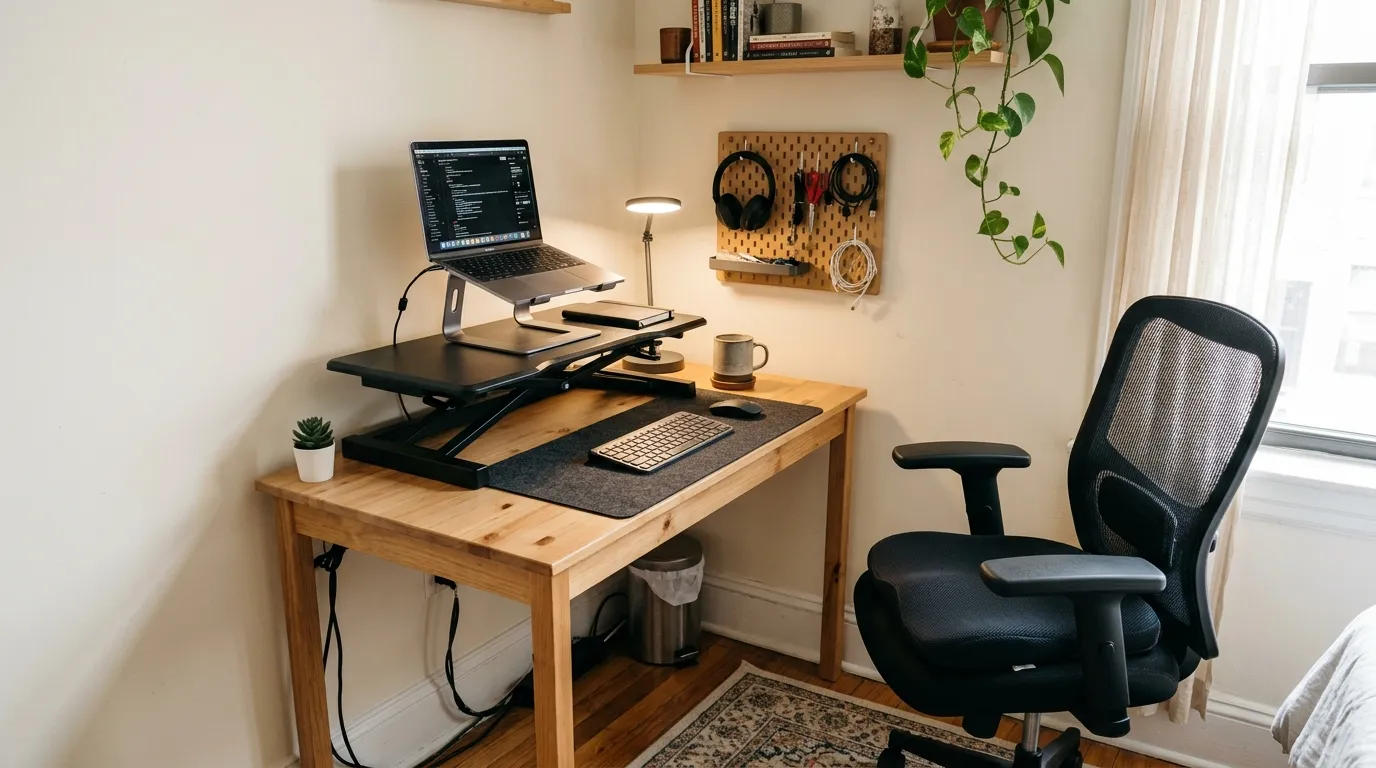
Bulky executive chairs overwhelm small spaces and often collide with nearby walls or bed frames. Instead, select an ergonomic chair designed with a smaller footprint and flexible adjustments.
Key Chair Features for Small Spaces
Look for task chairs that offer synchronous tilt, adjustable lumbar height, and flip-up armrests. Flip-up or 3D adjustable armrests allow you to slide the chair entirely beneath the desktop when your workday ends, keeping walkways clear.
Managing Seat Height and Foot Position
Your elbows should rest at a 90- to 100-degree angle aligned with the desktop surface. If raising your chair to match a fixed-height desk leaves your feet dangling:
- Avoid Tucking Legs Backward: Hooking your feet onto the chair base restricts circulation and strains the knees.
- Add an Under-Desk Footrest: Choose an angled, compact footrest to support your feet flat, keeping your thighs parallel to the floor and taking pressure off the lower lumbar region.
- Keep the Footwell Clear: Never store storage bins or computer towers in the area where your knees and feet need to move freely throughout the day.
3. Smart Peripherals and Surface Optimization
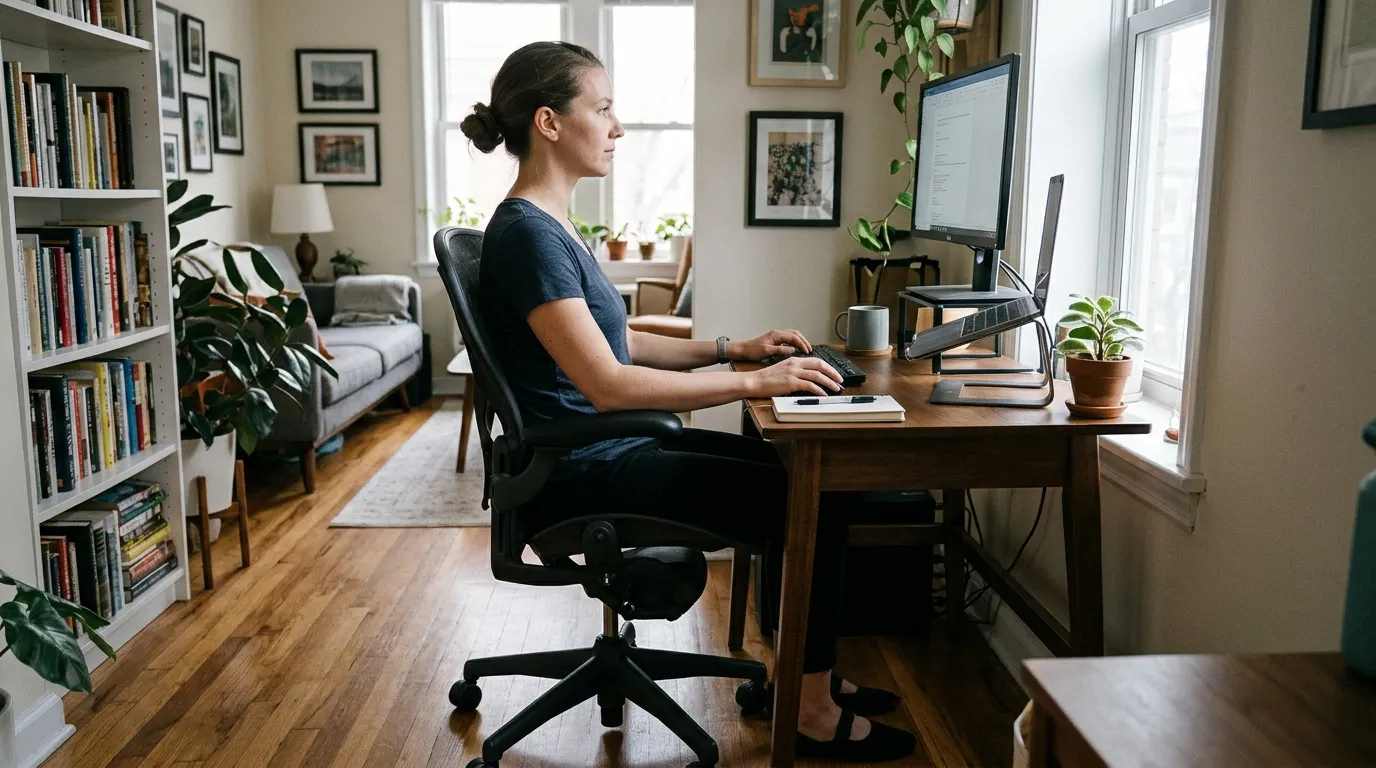
A cluttered desktop directly interferes with forearm placement and natural wrist extension. To preserve neutral posture in tight footprints, choose space-efficient peripherals.
Compact Keyboards (TKL or 75%)
Full-sized keyboards with integrated number pads force your mouse arm outward into an unnatural, abducted position. A Tenkeyless (TKL) or 75% mechanical keyboard brings your mouse closer to your body’s centerline, reducing shoulder strain.
Ergonomic Mice
Vertical mice or thumb-operated trackballs keep your forearm in a neutral “handshake” position. Trackballs are particularly effective for small workspaces because they remain stationary, eliminating the need for a wide mousepad clearance.
Freeing Surface Space
- Screenbar Lights: Replace traditional desk lamps with a monitor-mounted LED light bar. These clip onto the top bezel of your display, casting even light across your work area without taking up base space.
- Under-Desk Headphone Hooks: Use adhesive or clamped under-desk hangers to stow headphones, controllers, or cables off the primary work surface.
4. Cable Management and Lighting in Micro-Workspaces
Tangled cords in a small space do more than look messy—they create physical obstacles that restrict foot positioning and make shifting postures uncomfortable.
- Under-Desk Cable Trays: Mount a wire raceway or mesh tray beneath the back lip of the desk. House your power strips, power bricks, and excess cords off the floor entirely.
- Single-Cable Docking: Connect peripherals through a compact powered USB-C hub or Thunderbolt dock mounted beneath the desk. A single cable running to your laptop keeps the surface clean and reduces clutter.
- Reduce Glare: In compact rooms, desks are often tucked into corners or positioned perpendicular to windows. Adjust screen angles and use matte display filters or light bars to eliminate harsh reflections that force you to lean forward awkwardly.
Frequently Asked Questions
What is the minimum desk depth for an ergonomic setup?
The functional minimum desk depth is roughly 20 to 24 inches (50 to 60 cm), provided you use a monitor arm to push the display to the back edge. Anything shallower than 20 inches makes it difficult to maintain an arm’s-length viewing distance and proper forearm support.
Can standing desks work in small spaces?
Yes. Many manufacturers offer compact standing desks with surfaces as small as 36x24 inches or 40x24 inches. Alternatively, wall-mounted folding standing desks or compact standing desk converters can provide sit-stand functionality without demanding a large footprint.
How do I maintain good posture if my desk is a built-in shelf or alcove?
Focus on seating height, monitor elevation, and foot support. Add an adjustable monitor riser or arm to set the screen at eye level, adjust your chair so your forearms rest level with the shelf, and use an adjustable footrest to compensate for fixed surface heights.