Disclosure: ClearPick Digest is supported by its readers. If you buy through links on this page, we may earn a commission at no extra cost to you. Read our affiliate disclosure.
Executive Summary
- Consolidate upstream: Use a multi-port USB-C/Thunderbolt docking station to collapse multiple peripheral cords into a single umbilical line running to your laptop or desktop.
- Move power off the floor: Mount your power strip directly to the underside of the desktop so all high-draw cables travel with the desk rather than dangling to the wall.
- Plan for movement: Use flexible cable spines and reusable hook-and-loop fasteners instead of rigid zip ties to prevent port strain on sit-stand workstations.
Audit and Consolidate: The Single-Cable Foundation
The most common mistake when tackling cable clutter is attempting to bundle a web of cords that shouldn’t exist in the first place. Before purchasing raceways or clips, eliminate redundant power bricks and display adapters.
Begin by cataloging every peripheral connected to your setup: monitors, external drives, audio interfaces, charging bricks, and webcams. Wherever possible, transition to hardware that supports Power Delivery (PD) over USB-C. Modern monitors frequently feature built-in USB hubs and 65W to 100W PD passthrough. Utilizing your monitor’s internal hub allows you to route peripheral connections—such as your keyboard, mouse receiver, and desk light—straight into the back of the screen.
From there, a single high-bandwidth cable connects the monitor to your workstation. If your display lacks upstream charging, investing in an independent docking station placed beneath the desktop serves the same function: centralizing connectivity into an out-of-sight chassis and leaving only one visible line running to your device.
Under-Desk Routing: Mounting Trays and Raceways
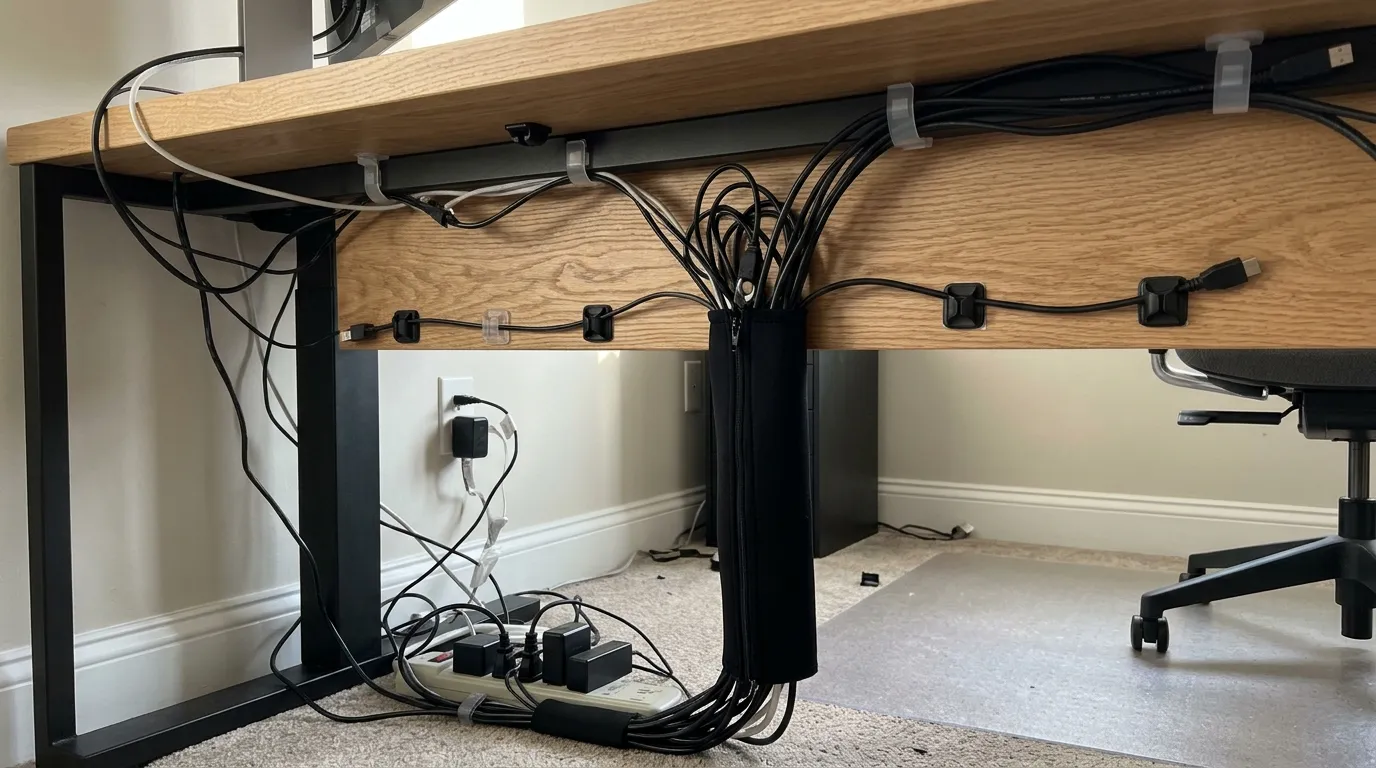
A clean desk setup hinges on controlling the underside of your work surface. Leaving power strips and surge protectors resting on the carpet creates visual chaos and turns your floor into a collection point for dust.
The standard solution involves installing an under-desk cable management tray. You generally have two installation formats:
- Screw-mounted metal wire baskets: These offer maximum ventilation for warm power adapters and provide structural rigidity for heavy surge protectors. They require drilling small pilot holes into the underside of the desktop.
- Clamp-on trays and fabric channels: Ideal for renters or glass and stone tops, clamp-on baskets secure over the back edge without puncturing the surface.
Once your power strip is mounted inside or directly next to the tray (using heavy-duty interlocking mounting strips), run your appliance cords into the tray first. Bundle excess cord length into concentric loops secured with reusable hook-and-loop wraps before dropping the main power strip line down to your wall outlet.
Desktop Surface Control: Channeling Necessary Slack
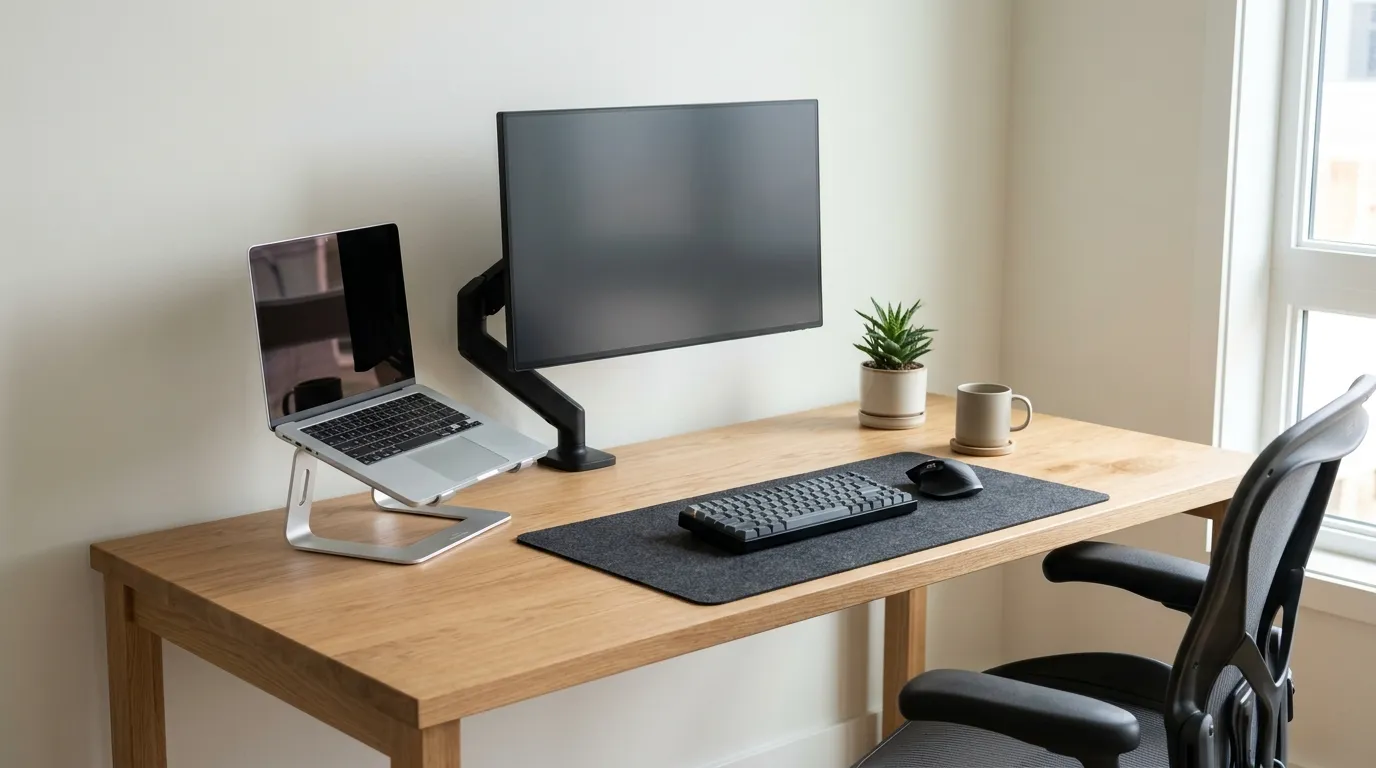
While under-desk solutions hide permanent runs, you still need accessible cords on the desktop surface for everyday devices like phones, tablets, and wireless peripherals. Managing these requires controlled breakout points rather than free-floating ends that slide behind the desk when unplugged.
Explore these high-efficiency surface solutions:
- Weighted Cable Drops: Heavy metal or silicone blocks with grooved channels sit on your desk corner, keeping terminal ends (USB-C, Lightning) parked at arm’s reach without sliding backward.
- Monitor Arm Channels: Most modern monitor arms feature integrated plastic runners or hollow arm segments. Thread display and power lines straight down through the arm joints to keep them aligned with the display pole.
- Braided Cable Sleeves: If you run multiple lines down a visible corner (e.g., monitor power, HDMI, and audio), enclose them in a split braided sleeving. A single neat sleeve looks intentional and visually recedes into the background compared to three distinct loose cords.
For sit-stand desk owners, remember to measure the sleeve length with the desk at its absolute highest setting. Leaving a few inches of slack prevents catastrophic port shearing when transitioning from sitting to standing.
Common Cable Management Mistakes to Avoid
Even well-intentioned cable cleanups can backfire if you lock down your setup too aggressively. Keep these pitfalls in mind:
- Using plastic zip ties: While permanent and clean, zip ties make future upgrades or device swaps tedious. Cutting a zip tie near delicate data cables risks slicing through insulation. Stick to reusable hook-and-loop straps.
- Over-cinching power cables: Bending heavy-gauge copper wiring past its minimum bend radius causes internal conductor fatigue and increases electrical resistance, generating dangerous heat over time.
- Grouping high-voltage power with unshielded audio: Running cheap 3.5mm analog audio cables flush against high-voltage transformer bricks can induce electro-magnetic interference, introducing audible buzzing or static into your headphones or monitor speakers.
Frequently Asked Questions
How do you manage cables on a standing desk without them pulling?
Install your main surge protector directly to the underside of the desk frame, so all components move upward together. Then, run a single heavy-duty extension cord from the mounted surge protector to the wall, routed through a weighted cable management spine or secured along the desk leg with sufficient slack at maximum height.
Are zip ties or velcro straps better for desk cable management ideas?
Hook-and-loop (velcro) straps are superior for home and office workspaces. They allow you to swap peripherals, replace failing cords, or clean components without having to cut ties with shears, reducing the risk of accidental wire damage.
How can I hide desk cables without drilling holes?
Use clamp-mounted wire trays, magnetic cable clips (for steel-framed desks), and adhesive-backed raceways. Heavy-duty interlocking mounting strips can also hold lightweight surge protectors and hubs under wooden or composite desks without mechanical fasteners.