Disclosure: ClearPick Digest is supported by its readers. If you buy through links on this page, we may earn a commission at no extra cost to you. Read our affiliate disclosure.
Executive Summary
- Band isolation matters: Most low-power IoT gear cannot negotiate band steering; splitting your router’s 2.4 GHz and 5 GHz networks prevents constant dropouts.
- DHCP lease expiration is a silent culprit: Assigning reserved DHCP addresses (static IPs) eliminates handshake failures during router lease renewals.
- Client limits trigger random reboots: Standard ISP gateways often drop smart devices once total concurrent connections exceed 30–40 clients.
Separate Your 2.4 GHz and 5 GHz Wi-Fi Bands
The overwhelming majority of smart plugs, smart bulbs, sensors, and budget security cameras rely solely on the older 2.4 GHz wireless frequency. Modern routers frequently feature a setting called “Smart Connect” or “Band Steering,” which combines the 2.4 GHz and 5 GHz bands under a single network name (SSID).
When a smart device keeps disconnecting wifi, the router is often attempting to shove the IoT client onto the faster 5 GHz band. Because the smart device’s microchip lacks 5 GHz radios, the negotiation fails, severing the link completely.
To fix this:
- Log in to your router’s web admin panel (typically found at
192.168.1.1or192.168.0.1). - Navigate to your Wireless Settings.
- Disable Smart Connect or Band Steering.
- Create distinct names for each frequency—for instance,
HomeNetwork_2.4GandHomeNetwork_5G. - Connect all smart plugs, sensors, and bulbs exclusively to the
2.4GSSID. Reserve the5Gband for streaming boxes, laptops, and smartphones.
Assign Reserved IP Addresses (Static DHCP)
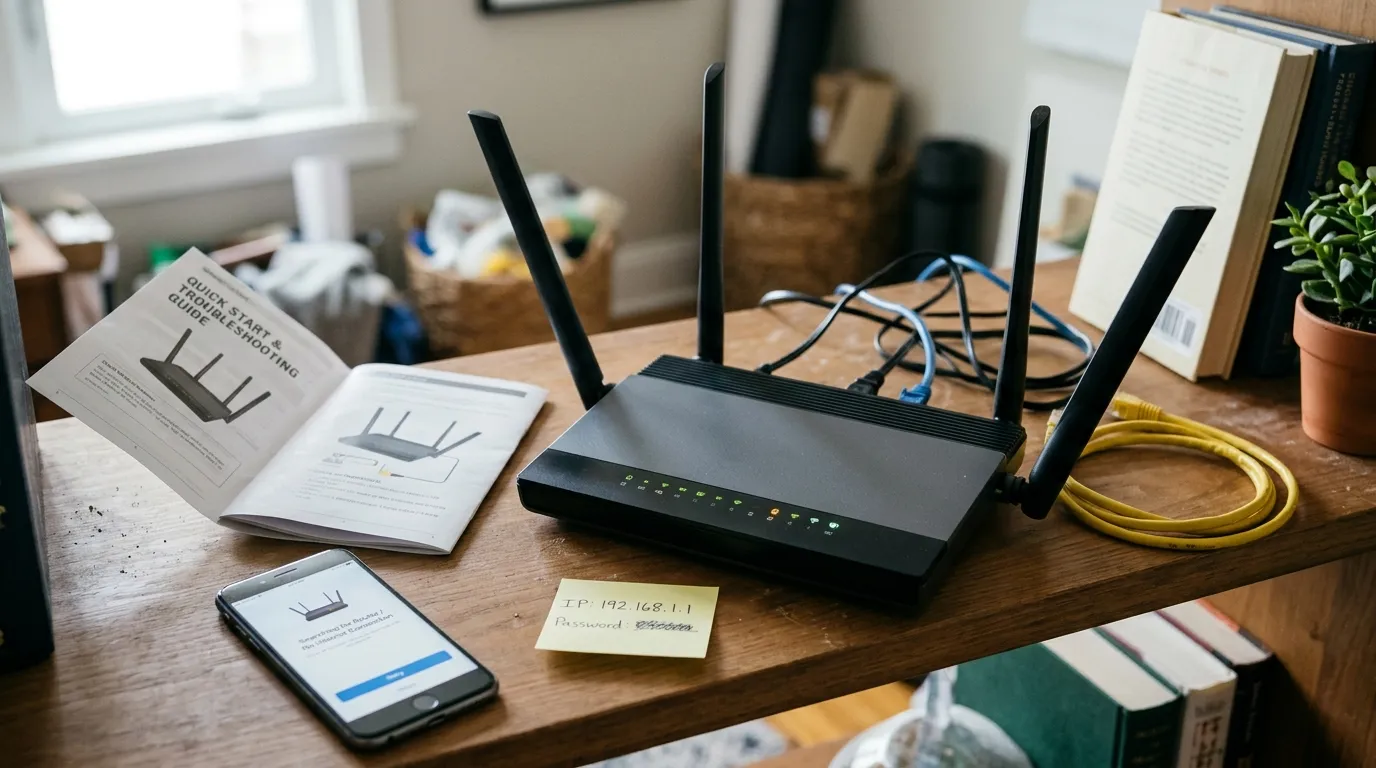
Every time your router’s Dynamic Host Configuration Protocol (DHCP) lease expires—typically every 24 to 72 hours—connected devices must request a renewed address. Low-cost microcontrollers found in smart appliances often fail to respond properly to these automated handshakes, causing them to show as “offline” in your home automation app until power-cycled.
You can permanently eliminate renewal drops by assigning a static IP reservation:
- Find your device’s MAC address in its companion app (usually located under Device Info or Network Settings).
- Open your router dashboard and navigate to LAN Settings > DHCP Server > Address Reservation.
- Match the MAC address of the problematic smart device to a specific, permanent IP address within your local subnet.
- Save settings and restart both the router and the client device.
Once locked to a dedicated IP address, the smart device bypasses the periodic re-negotiation cycle, maintaining an uninterrupted link to your local hub and cloud servers.
Manage Device Density and Channel Congestion
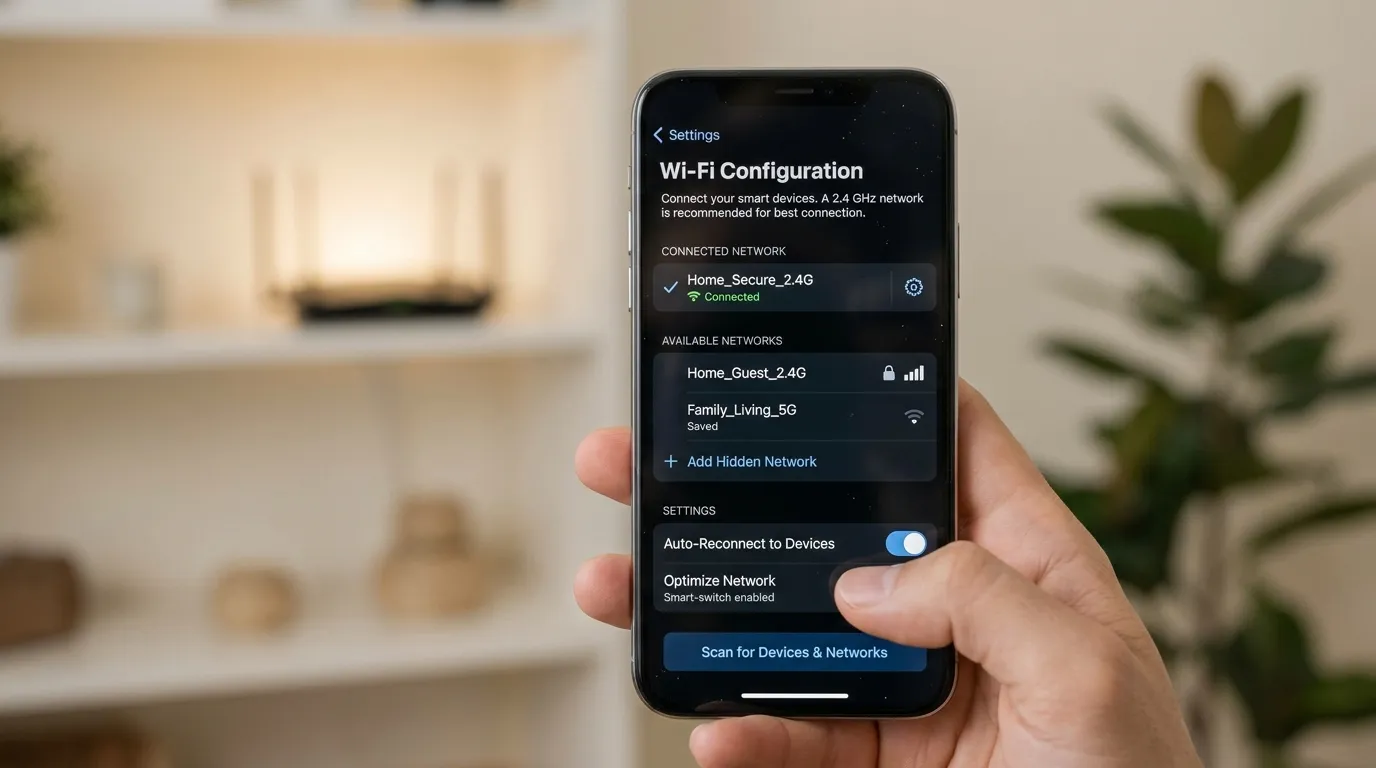
A home network setup that worked seamlessly with ten devices will struggle when smart bulbs, switches, and appliance modules expand your fleet to 40 or more endpoints. Entry-level gateways supplied by Internet Service Providers are notorious for choking on concurrent client connections.
Audit Your 2.4 GHz Channel
The 2.4 GHz spectrum offers only three non-overlapping channels: 1, 6, and 11. Routers set to “Auto” channel selection change frequencies dynamically whenever they detect interference from a neighbor’s network. Every time the router hops channels, low-power IoT clients drop off the network.
- Use a free Wi-Fi analyzer app on an Android phone or PC to identify the least congested channel in your living space.
- Manually lock your router’s 2.4 GHz channel width to 20 MHz (never 40 MHz, which introduces heavy packet collision).
- Set the channel statically to 1, 6, or 11.
Offload to a Dedicated IoT VLAN or Mesh Node
If your gateway reaches hardware capacity, it silently boots older or idle connections to make room for active traffic. If you own dozens of Wi-Fi accessories, consider adding an access point or mesh system capable of handling 100+ concurrent clients, or migrate future sensor purchases toward low-power mesh protocols like Zigbee, Z-Wave, or Thread to free up Wi-Fi bandwidth.
Disable Disruptive Gateway Power-Saving Features
Certain modern router settings designed to optimize enterprise traffic actively sabotage low-power smart accessories:
- Target Wake Time (TWT): An advanced Wi-Fi 6 feature that allows clients to sleep. Many legacy IoT chips misinterpret TWT signals and go into permanent deep sleep. Disable TWT if older devices drop offline intermittently.
- Airtime Fairness (ATF): Prioritizes fast modern devices by limiting airtime for older, slower clients. Because smart plugs send tiny, slow data bursts, ATF often cuts their transmission window mid-packet. Turn this setting off.
- WPA3-Only Security: While WPA3 provides superior encryption, most smart accessories manufactured prior to recent standards only support WPA2-PSK (AES). Ensure your router is configured for WPA2/WPA3 Mixed Mode or strict WPA2-PSK.
Frequently Asked Questions
Why does only one smart plug or bulb keep disconnecting while the rest stay online?
When an individual device drops out while identical models remain stable, the issue usually stems from physical signal attenuation (such as metal junction boxes or thick plaster walls), a localized IP conflict, or a defective internal Wi-Fi antenna. Try swapping the failing unit’s location with a working unit to isolate whether the failure is environmental or hardware-related.
Does a factory reset permanently fix recurring Wi-Fi drops?
A factory reset clears corrupted internal cache and re-establishes an initial handshake, but it rarely fixes root causes like channel interference, band-steering failures, or gateway client saturation. If the underlying router configuration is unchanged, the device will likely disconnect again within a few days.
Can running too many 2.4 GHz devices interfere with standard home Wi-Fi?
Yes. Excessive 2.4 GHz smart devices flooding the network with broadcast traffic can increase latency across all connected hardware. Moving high-bandwidth equipment (like PCs and TVs) to 5 GHz, 6 GHz, or Ethernet cables minimizes airtime congestion for your lower-priority smart accessories.